Experimenting with a KVM switch
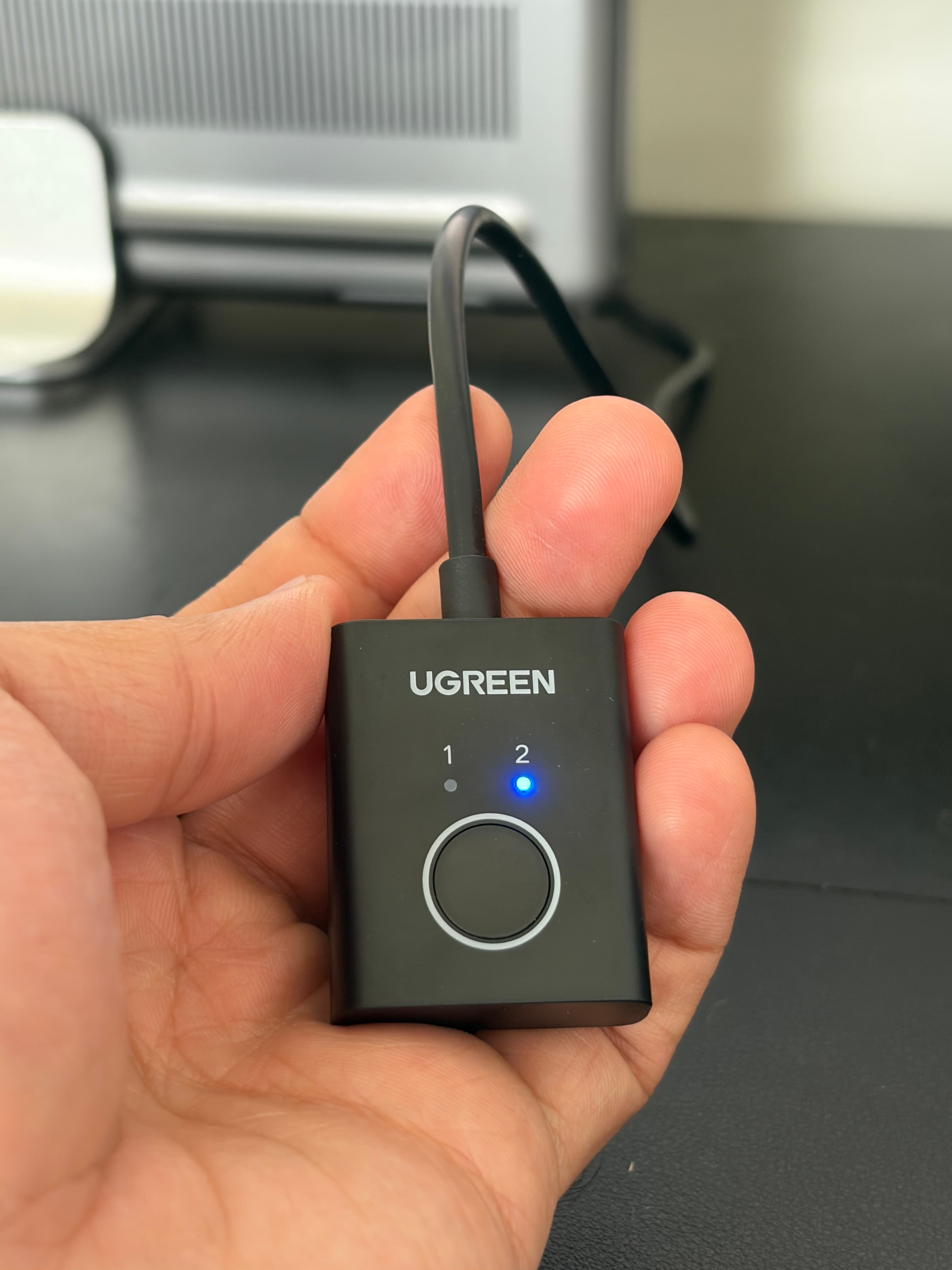
One switch to rule them all.
Over the past few weeks, I have been trying to make my workstation as efficient as possible. I was mainly focused on solving the problem of switching between my personal and work systems. I loathed the process of unplugging and replugging wires between the two.
Enter the KVM switch!
This one device solved all my hardware switching problems. I have two systems: a Dell laptop and a MacBook Air. I wanted them both to sync up to my 27-inch monitor (with the possibility of adding a second monitor in the future), and I wanted them to share my Dell KM555 keyboard and mouse (my favorite). I'll attach a diagram of my setup below for reference.
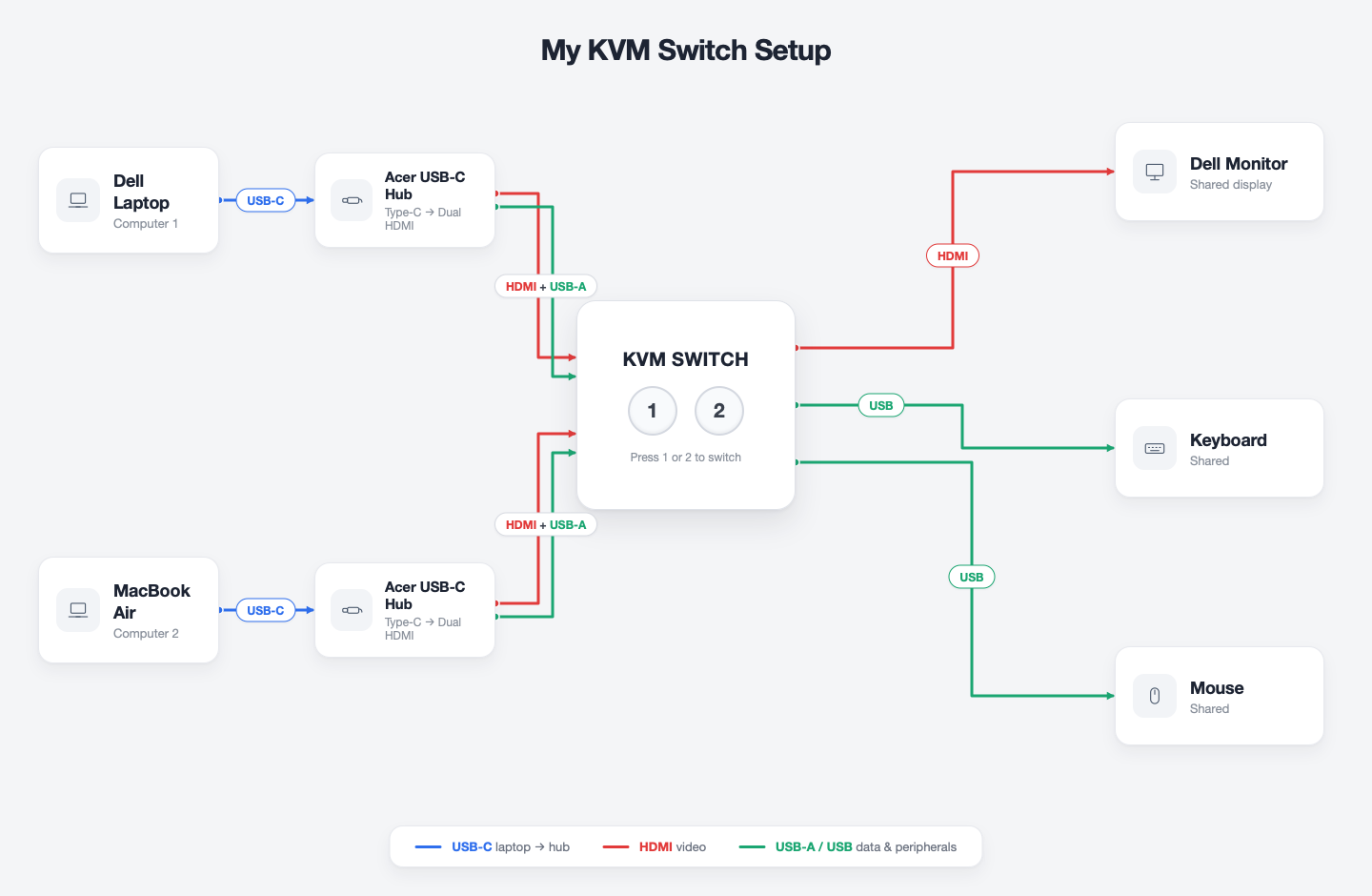
The Products I used:
- The KVM switch: KVM Switch
- The dual HDMI adapters (you will need these if you don't have HDMI ports on your laptops): Dual HDMI Adapters
- Cable management: Cable Management
Total cost: $169 after taxes and delivery.
Side note: It's really cool that we live in an age where you can verbalize your problems to AI chatbots like Gemini and get solutions you never even knew existed. Gemini not only gave me product recommendations but also flagged potential challenges I could face while configuring my setup. If I hadn't gone the Gemini route, I probably would have picked up the first "2 PC, 2 Monitor" KVM I saw without considering the need for adapters, especially since most modern laptops don't have dual HDMI ports, and many KVMs rely on DisplayPorts.